
Epson Adjustment Program
Download the latest Epson adjustment program, Epson reset utilities, and reset tools for L-Series, M-Series, XP-Series, WF-Series, and more. Fix “Service Life Expired” and other printer errors instantly. All software is completely free of cost and does not require a password, making it safe and easy for everyone to use.
- 100% Virus-Free
- Verified Files
- Free Forever
- Trusted by 50,000,00+ Users
What is epson adjustment program?
Epson resetter
Epson Adjustment Program, also known as Epson Resetter or Epson Reset Utility, is a special service tool created to fix internal errors in Epson printers. It allows users to reset the waste ink pad counter, clear the “Service Required” or “Service Life Expired” warning, and restore the printer back to normal working condition.
⭐ Waste Ink Counter Reset
Clears the “Service Required / Ink Pad Full” error and resets the waste ink counter.
⭐ EEPROM Initialization
Restores internal printer memory to factory values.
⭐ Head Cleaning Utility
Performs printhead cleaning Works with L-Series, M-Series, XP, WF, EcoTank, and many more Epson printers.
⭐ Ink Charge Reset
Recalibrates and resets ink charging levels for accurate ink readings.
⭐ Boosts Printer Performance
Improves print quality by performing head cleaning, ink charge, and maintenance tasks.
⭐ 100% Safe & Tested
Virus-free, checked, and verified tools ensure safe and reliable printer resetting.
Download Epson Adjustment Program
Find every Epson adjustment program and resetter tool in one place, organized by printer model for easy access. Download free, password-free reset utilities for all L-Series, M-Series, XP-Series, WF-Series, and more.
Epson L Series
Model | Link |
Epson L100 | |
Epson L101 | |
Epson L110 | |
Epson L111 | |
Epson L120 | |
Epson L121 | |
Epson L130 | |
Epson L132 | |
Epson L200 | |
Epson L210 | |
Epson L211 | |
Epson L220 | |
Epson L222 | |
Epson L300 | |
Epson L310 | |
Epson L311 | |
Epson L312 | |
Epson L350 | |
Epson L355 | |
Epson L360 | |
Epson L361 | |
Epson L362 | |
Epson L363 | |
Epson L365 | |
Epson L366 | |
Epson L375 | |
Epson L380 | |
Epson L382 | |
Epson L383 | |
Epson L385 | |
Epson L386 | |
Epson L395 | |
Epson L396 | Download |
Epson L405 | |
Epson L455 | |
Epson L475 | |
Epson L486 | |
Epson L495 | Download |
Epson L550 | |
Epson L555 | |
Epson L561 | |
Epson L563 | |
Epson L565 | |
Epson L575 | |
Epson L605 | |
Epson L606 | Download |
Epson L655 | |
Epson L656 | |
Epson L800 | |
Epson L805 | |
Epson L810 | |
Epson L811 | |
Epson L850 | |
Epson L1110 | |
Epson L1210 | |
Epson L1216 | |
Epson L1250 | |
Epson L1256 | |
Epson L1300 | |
Epson L1455 | |
Epson L1800 | |
Epson L3050 | |
Epson L3060 | |
Epson L3070 | |
Epson L3100 | |
Epson L3101 | |
Epson L3110 | |
Epson L3111 | |
Epson L3115 | |
Epson L3116 | |
Epson L3118 | |
Epson L3119 | |
Epson L3150 | |
Epson L3151 | |
Epson L3152 | |
Epson L3156 | |
Epson L3160 | |
Epson L3200 | |
Epson L3201 | |
Epson L3210 | |
Epson L3211 | |
Epson L3212 | |
Epson L3213 | |
Epson L3215 | |
Epson L3216 | |
Epson L3217 | |
Epson L3218 | |
Epson L3219 | |
Epson L3250 | |
Epson L3251 | |
Epson L3260 | |
Epson L3560 | |
Epson L4150 | |
Epson L4160 | |
Epson L4260 | |
Epson L4261 | |
Epson L4267 | |
Epson L5190 | |
Epson L5290 | |
Epson L5296 | |
Epson L5590 | Download |
Epson L6160 | |
Epson L6161 | |
Epson L6170 | |
Epson L6171 | |
Epson L6190 | |
Epson L6191 | |
Epson L6270 | Download |
Epson L6290 | |
Epson L6460 | |
Epson L6490 | |
Epson L6550 | |
Epson L6580 | |
Epson L8160 | Download |
Epson L8180 | Download |
Epson L14150 | |
Epson L15150 | |
Epson L15160 |
Epson Artisan Series
Model | Link |
Artisan 50 | |
Artisan 700 | |
Artisan 710 | |
Artisan 837 | |
Artisan 1430 |
Epson R Series
Model | Link |
Epson R200 |
Epson PictureMate (PM) Series
Epson WorkForce (WF) Series
Model | Link |
WorkForce 30 | |
WorkForce 40 | |
WorkForce 60 | |
WorkForce 310 | |
WorkForce 315 | |
WorkForce 321 | |
WorkForce 323 | |
WorkForce WF-325 | |
WorkForce 435 | |
WorkForce 500 | |
WorkForce WF-525 | |
WorkForce 845 | |
WorkForce ST-M1000 | |
WorkForce WF-2530 | |
WorkForce WF-2750 | |
WorkForce WF-2830 | |
WorkForce WF-2860 | |
WorkForce WF-3520 | |
WorkForce WF-3540 | |
WorkForce Pro WF-3820 | |
WorkForce Pro EC-4020 | |
WorkForce Pro EC-4030 | |
WorkForce Pro EC-4040 | |
WorkForce WP-4092 | |
WorkForce PRo WP-4595 DNF | |
WorkForce Pro WF-4820 | |
WorkForce Pro WF-4830 | |
WorkForce Pro WF-C5210 | |
WorkForce Pro WF-C5290 | |
WorkForce Pro WF-C5710 | |
WorkForce WF-7015 | |
WorkForce WF-7210 | |
WorkForce WF-7515 | |
WorkForce WF-7520 | |
WorkForce WF-7521 | |
WorkForce WF-7525 | |
WorkForce Pro WF-7820 |
Epson EcoTank (ET) Series
Model | Link |
ET-1810 | |
ET-2800 | |
ET-2803 | |
ET-2810 | |
ET-2811 | |
ET-2812 | |
ET-2814 | |
ET-2815 | |
ET-2820 | |
ET-2821 | |
ET-2825 | |
ET-2826 | |
ET-2600 | |
ET-2700 | |
ET-2710 | |
ET-2720 | |
ET-2750 | |
ET-2760 | |
ET-3600 | |
ET-3700 | |
ET-3710 | |
ET-3750 | |
ET-3760 | |
ET-4800 |
Epson SureColor (SC) Series
Model | Link |
SureColor P700 | |
SureColor P900 | |
SureColor SC-T3000 | |
SureColor SC-T5000 | |
SureColor SC-T5100 | |
SureColor SC-T5130 | |
SureColor SC-T5140 | |
SureColor SC-T5150 | |
SureColor SC-T5150N | |
SureColor SC-T5160 | |
SureColor SC-T5170 | |
SureColor SC-T5180 | |
SureColor SC-T5200 | |
SureColor SC-T5200D | |
SureColor SC-T5200D MFP PS | |
SureColor SC-T7000 | |
SureColor SC-S50600 | |
SureColor SC-S50600 (4C) | |
SureColor SC-S50610 (4C) | |
SureColor SC-S50610 (5C) |
Epson Stylus Photo Series
Model | Link |
Stylus Photo T50 | |
Stylus Photo T60 | |
Stylus Photo 950 | |
Stylus Photo 1390 | |
Stylus Photo 1400 | |
Stylus Photo 1410 | |
Stylus Photo 1420 | |
Stylus Photo 1430 | |
Stylus Photo 1430W | |
Stylus Photo 2000p |
Epson M Series
Model | Link |
Epson M100 | |
Epson M200 | |
Epson M205 | |
Epson M2110 | |
Epson M2120 | |
Epson M2140 | |
Epson M2170 | |
Epson M3140 | |
Epson M3170 | |
Epson M3180 | |
Epson M15180 |
Epson B Series
Model | Link |
B-30 | |
B-40 | |
B-300 | |
B-300DN | |
B-310N | |
B-500DN | |
B-510DN |
Epson EM Series
Model | Link |
EM-900CN |
How to Fix Epson Printer?
Step by Step Guide to Fix Epson Printer Problems
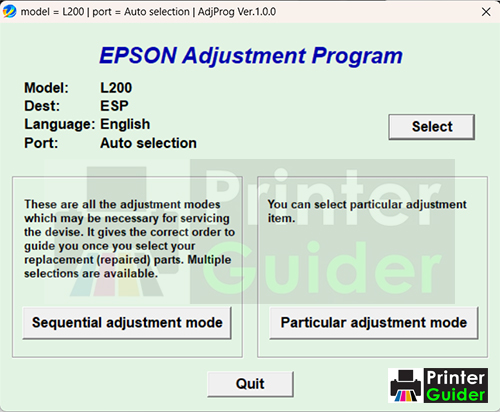
1. Download Epson Resetter.
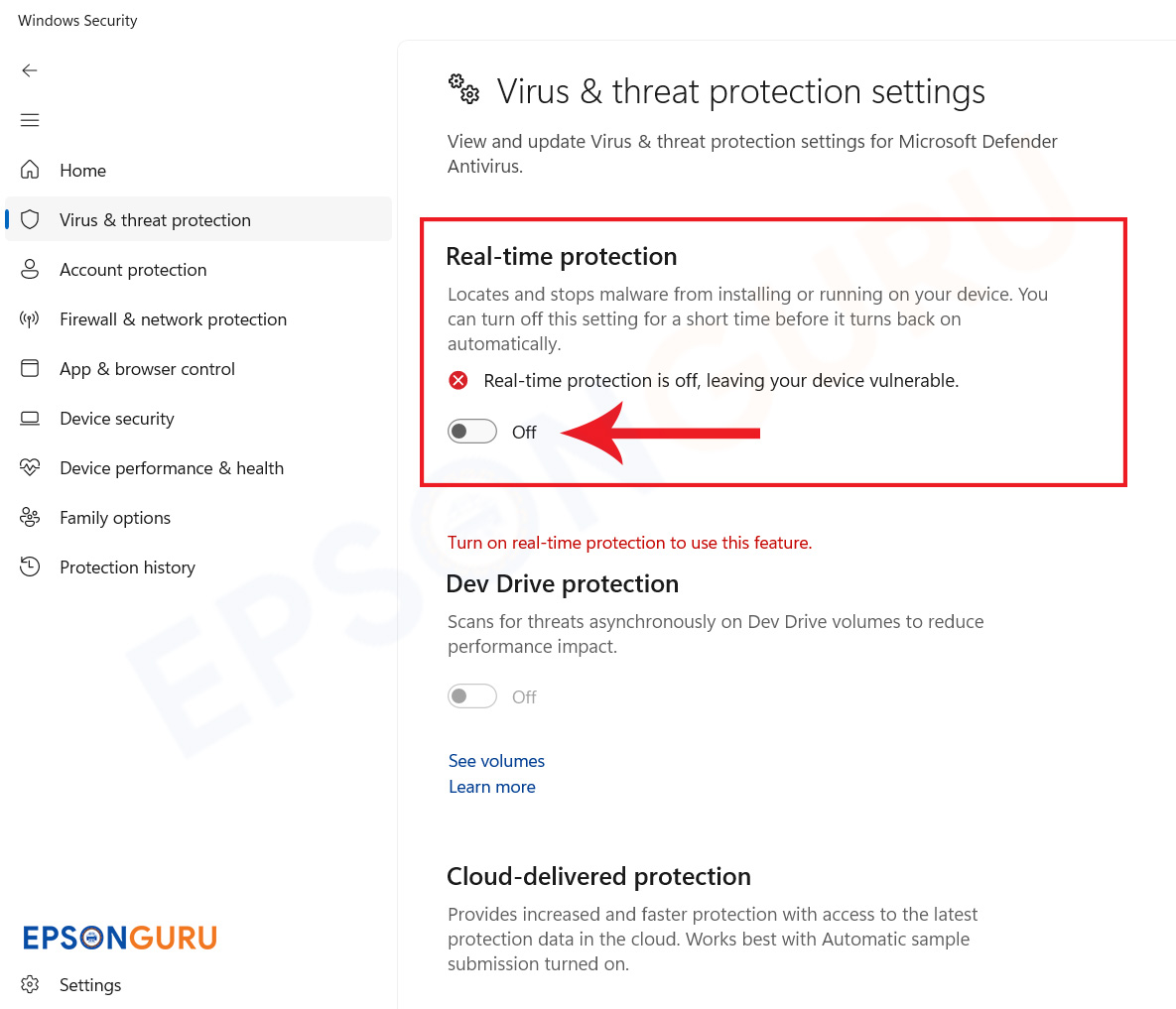
2. Disable antivirus temporarily (if flagged).
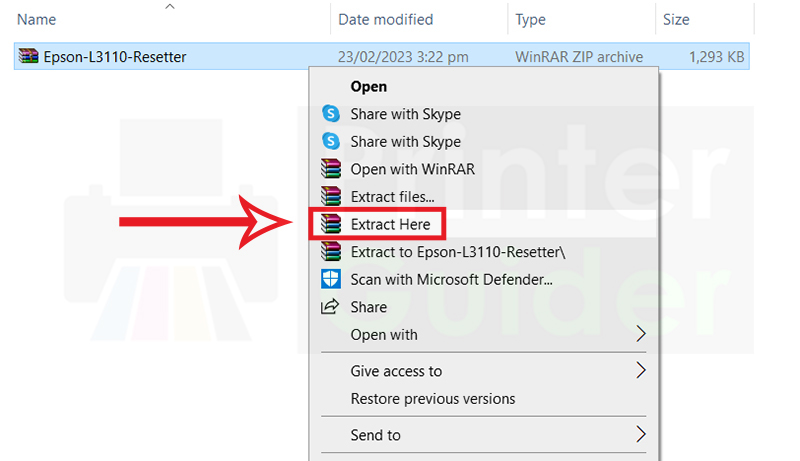
3. Extract the Epson Resetter Software using WinRAR.
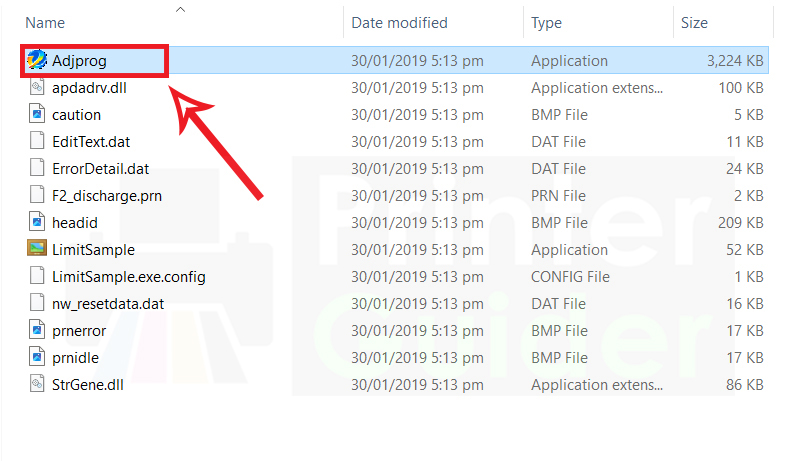
4. Open Adjprog
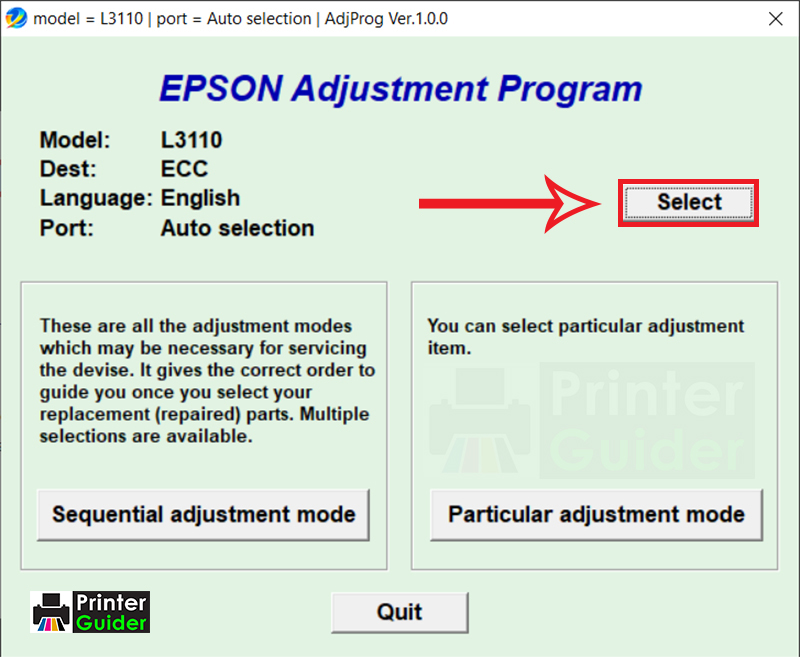
5. Click on the Select Button
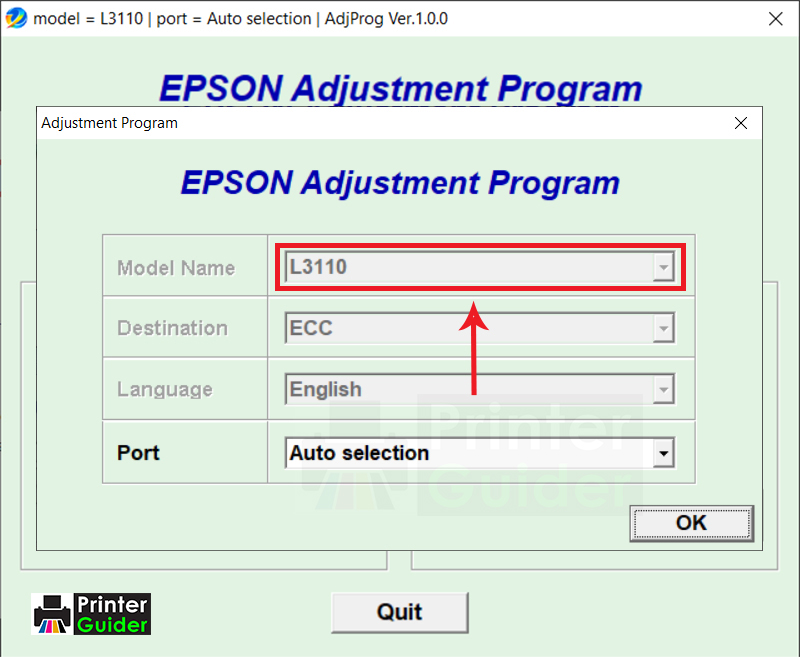
6. Choose Printer Model
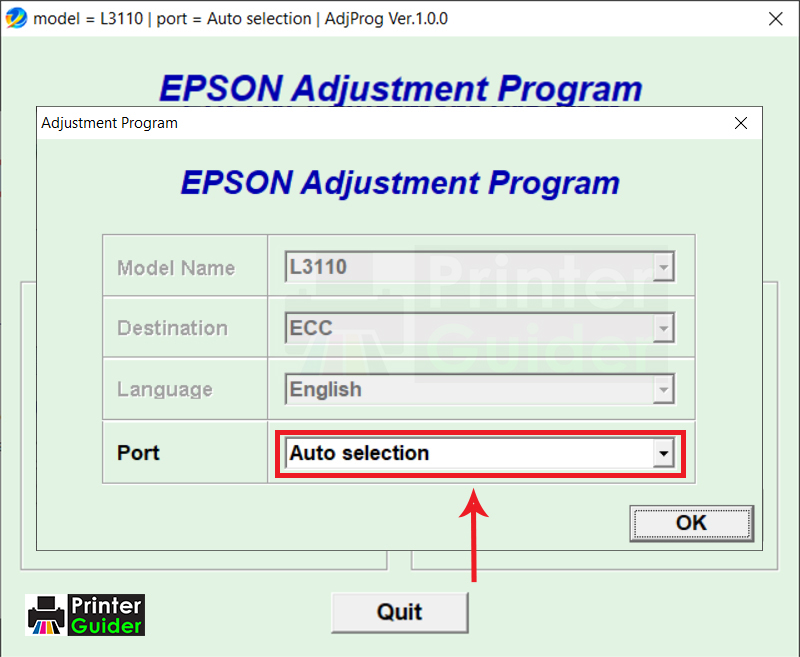
7. Choose Port, then click on the OK button.
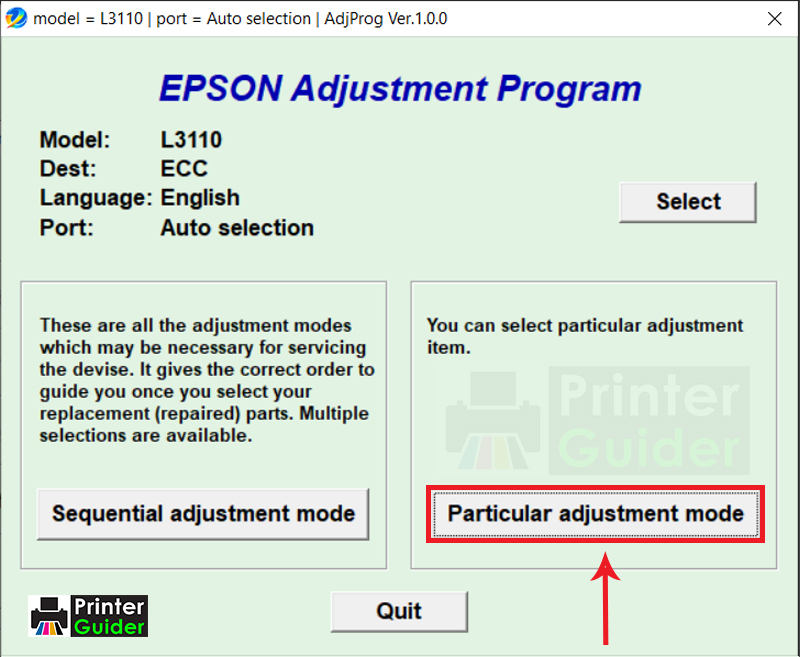
8. Open a Particular adjustment mode
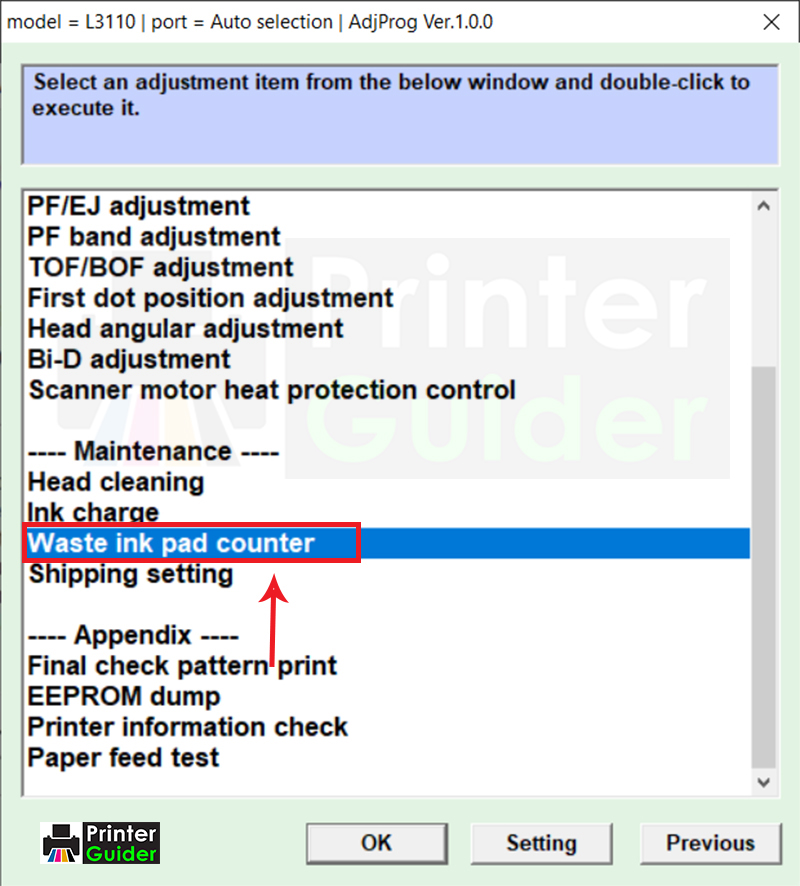
9. Select Waste Ink Pad counter
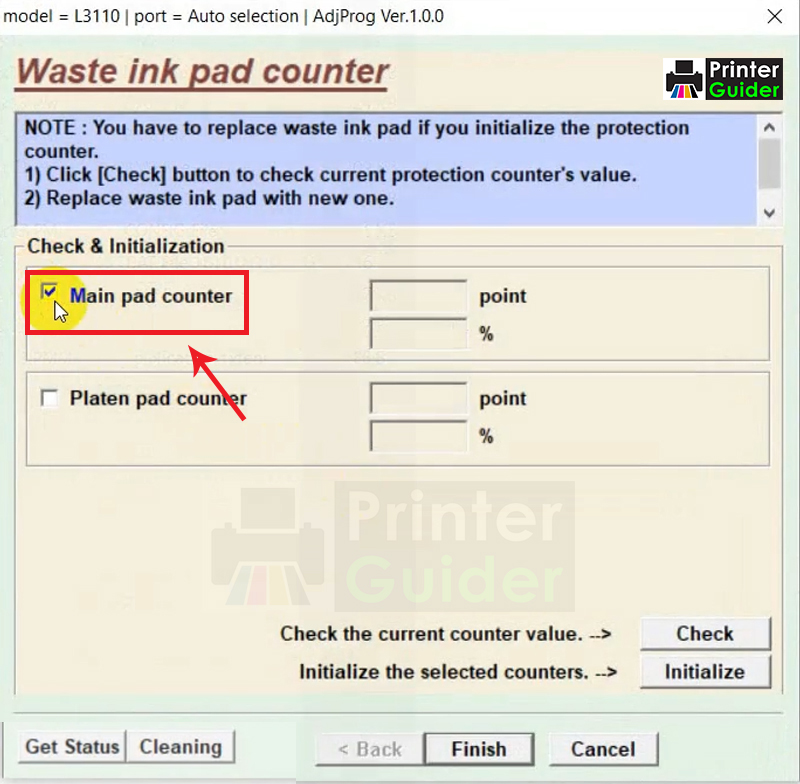
10. Select Main Pad Counter
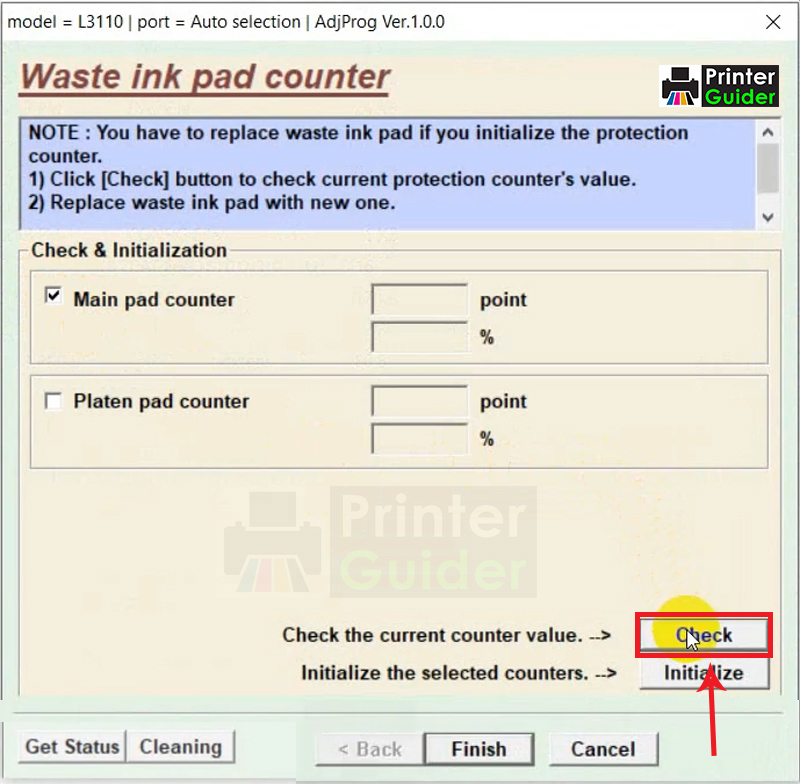
11. Click on the Check Button
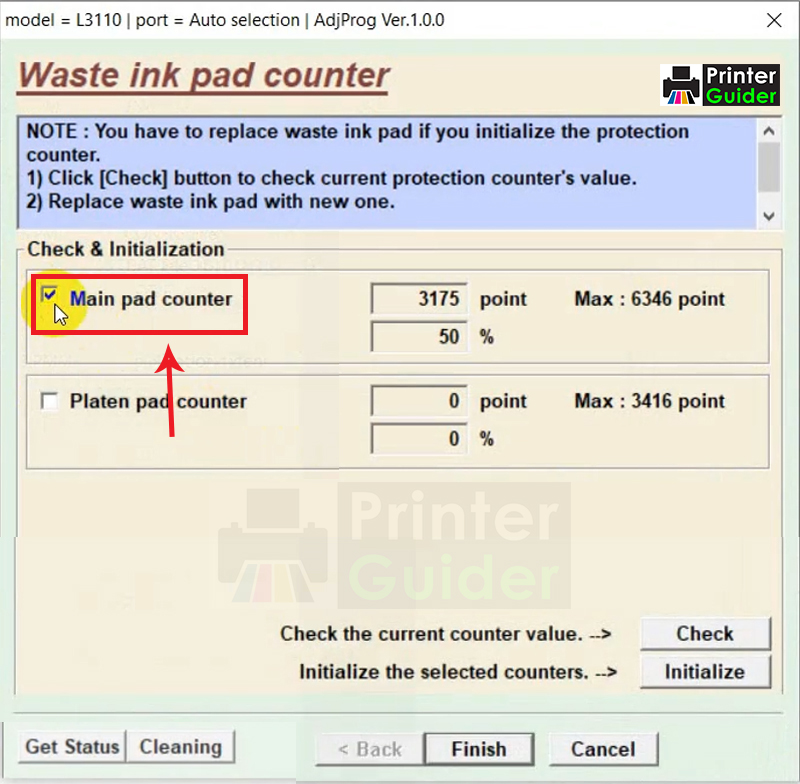
12. Select the Main Pad Counter Again
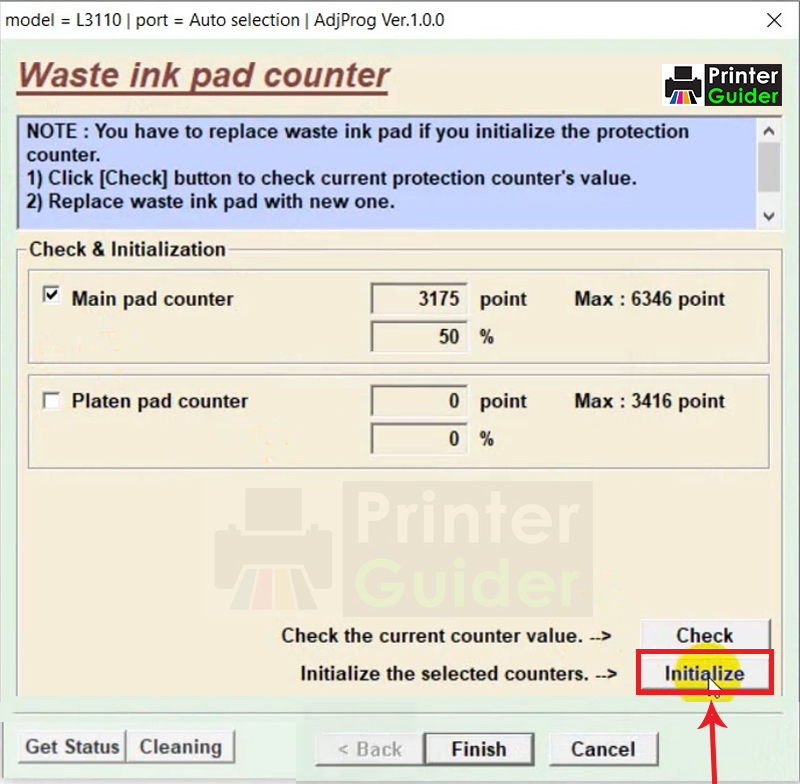
13. Click on the Initialise Button
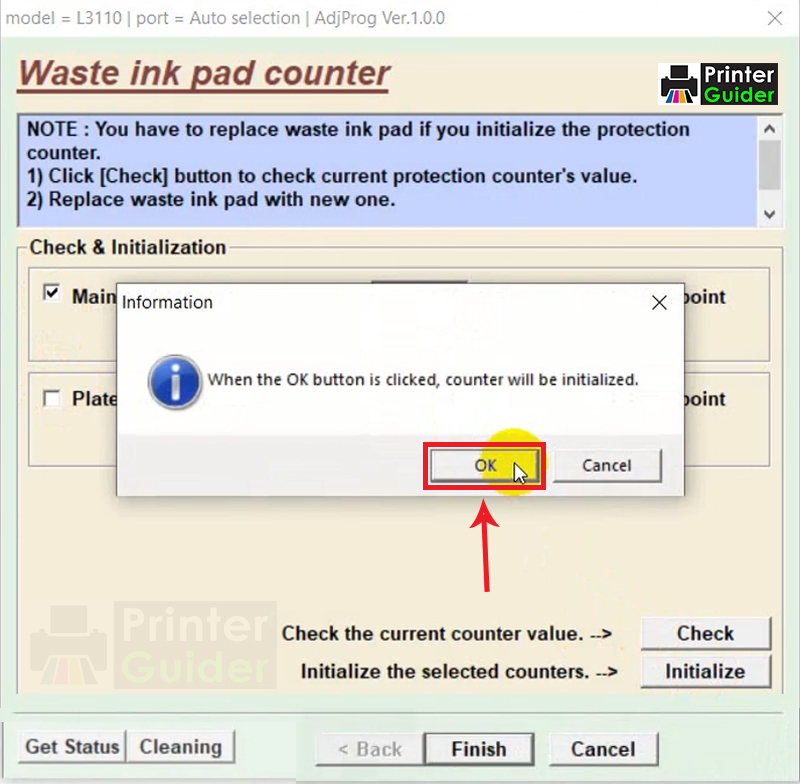
14. Click on the OK Button
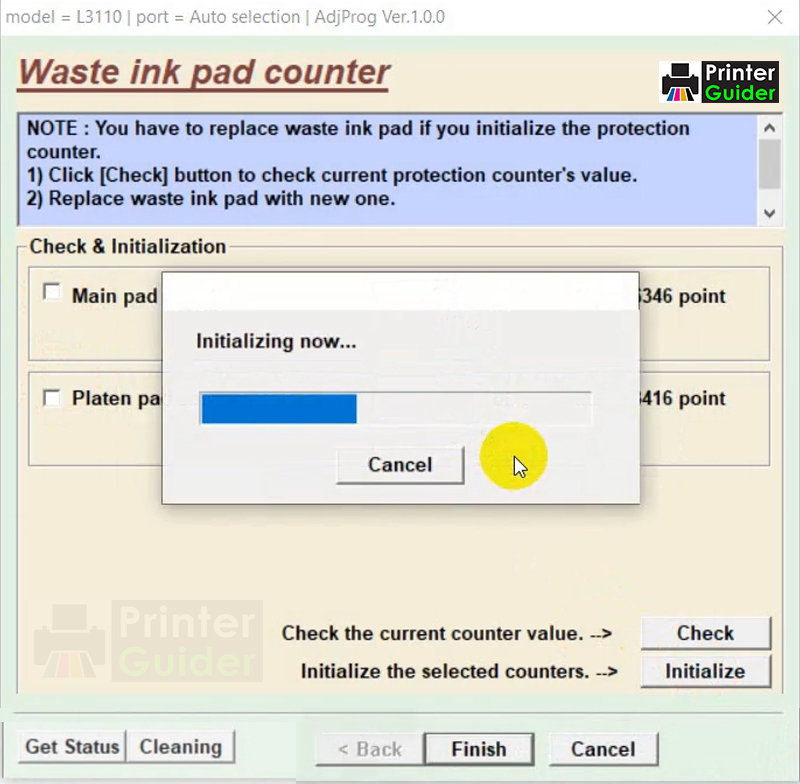
15. Initialising Now
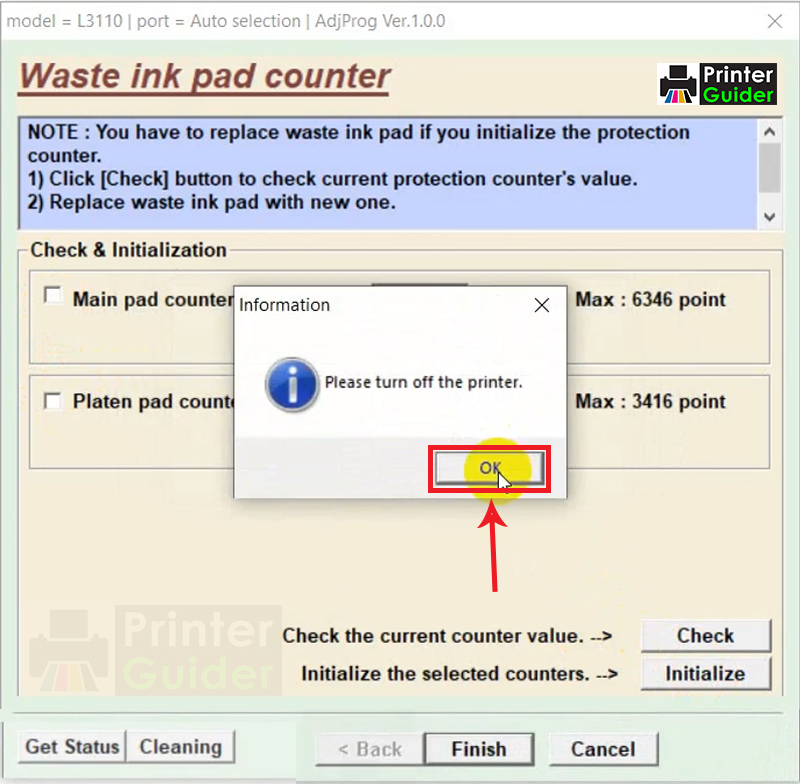
16. Turn off the printer, then click on the OK Button
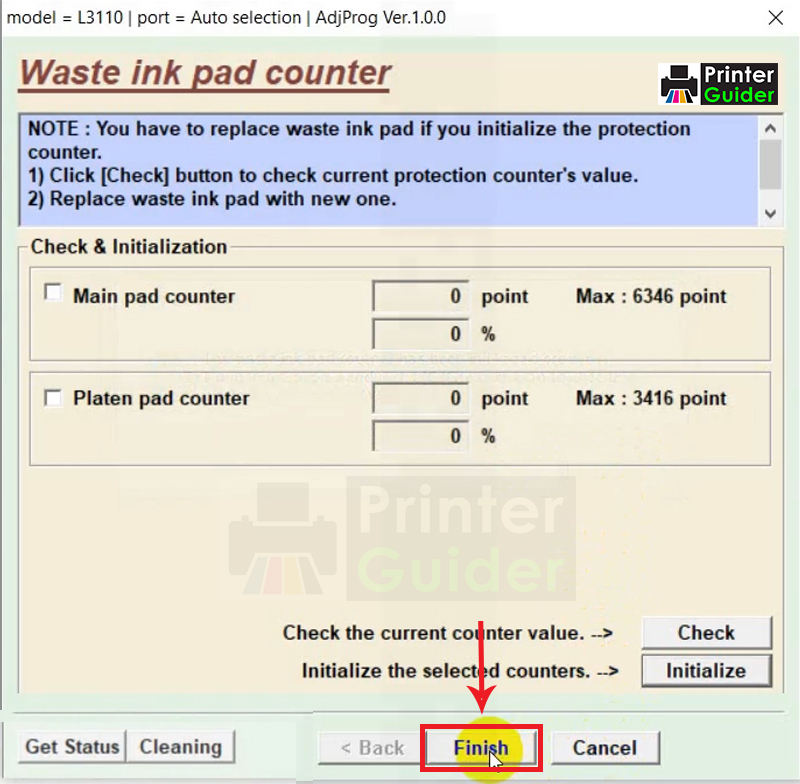
17. Click on the Finish Button
18. Now, Close the Program. Done. Enjoy!
Epson Printer Common Problems & Solutions
Having trouble with your Epson printer? Below is a detailed troubleshooting guide covering the most common Epson printer issues along with proven solutions. This guide applies to Epson EcoTank, L-Series, Inkjet, and Wi-Fi printers.
1. Epson Printer Not Printing
Problem: Printer is powered on but not printing documents.
Solution:
- Restart both printer and computer
- Set Epson printer as the default printer
- Clear pending print jobs
- Reinstall or update the Epson printer driver
- Check USB or Wi-Fi connection
2. Paper Jam Error
Problem: Paper jam message appears even when no paper is visible.
Solution:
- Turn off and unplug the printer
- Open all covers and gently remove jammed paper
- Check rear roller area for torn pieces
- Reload paper properly and avoid overfilling
3. Ink Not Printing or Faded Output
Problem: Prints are light, faded, or completely blank.
Solution:
- Run Print Head Cleaning from printer settings
- Perform Nozzle Check
- Refill ink correctly (EcoTank models)
- Avoid excessive deep cleaning cycles
4. Ink Pad End of Service Life Error
Problem: Printer stops working and shows a maintenance error.
Solution:
- Use an Epson Resetter Tool (model-specific)
- Reset the waste ink counter
- Clean or replace waste ink pads (recommended)
- Restart printer after reset
5. Epson Wi-Fi Connection Problem
Problem: Printer disconnects or fails to connect to Wi-Fi.
Solution:
- Reconnect printer using Epson Setup Utility
- Restart router and printer
- Enter correct Wi-Fi password
- Keep printer within router range
6. Printer Printing Blank Pages
Problem: Printer feeds paper but prints nothing.
Solution:
- Run nozzle check and head cleaning
- Confirm correct paper size and print settings
- Reinstall Epson printer driver
7. Red Light Blinking Error
Problem: Red or orange light blinking continuously.
Solution:
- Check for paper jam or ink errors
- Reinstall ink cartridges
- Power reset printer
- Refer to on-screen error message
8. Epson Scanner Not Working
Problem: Scanner not detected or not responding.
Solution:
- Install Epson Scan or Epson Scan 2
- Reconnect USB or Wi-Fi
- Restart Epson Scan Service (Windows)
9. Printer Showing Offline Status
Problem: Printer appears offline even when connected.
Solution:
- Go to Devices & Printers
- Disable “Use Printer Offline” option
- Ensure printer and PC are on the same network
10. Lines, Streaks, or Dots on Prints
Problem: Print quality is poor or uneven.
Solution:
- Clean and align print head
- Check ink levels
- Use recommended paper type
11. How to Fix Epson L3150 Error 000043? (Also works for many other Epson L-series printers)
Epson Error 000043 usually means the printer detected an internal movement or sensor problem. This error commonly appears on models like Epson EcoTank L3150, Epson EcoTank L3110, Epson EcoTank L3210, Epson EcoTank L3250 and similar Epson printers.
Common Causes:
- Hidden paper jam inside the printer
- Dirty or misaligned paper feed sensor / encoder sensor
- Printhead carriage stuck or not moving freely
- Encoder strip/disc contamination (dust, grease, paper particles)
- Carriage motor or belt issue
- Firmware or hardware communication issue
How to Fix Error 000043:
- Turn OFF the printer
- Unplug power for 2–10 minutes.
- Check for hidden paper pieces
- Open front and rear paper path.
- Remove even tiny paper scraps.
- Move carriage carefully
- With power disconnected, gently check if the printhead carriage moves smoothly.
- Clean encoder strip / sensor
- Look for transparent strip or encoder wheel.
- Remove dust using a soft lint-free cloth.
- Check paper feed mechanism
- Inspect rollers and internal gears for blockage.
- Reconnect and restart
- Power ON and test print.
- If error remains
- It may require sensor replacement, carriage repair, cable repair, or service inspection.
How do I fix Error Code 034004 on Epson L3250 or Epson L3110?
Error Code 034004 on Epson L3250 and L3110 usually indicates a problem with the printer’s internal movement mechanism, paper feed system, sensors, or an obstruction inside the printer. Follow these methods to resolve the issue:
Method 1: Check for Paper Jam
- Turn off the printer and unplug the power cable.
- Open the scanner unit and inspect the paper path.
- Remove any jammed paper or small paper fragments.
- Restart the printer and check if the error disappears.
Method 2: Remove Foreign Objects
- Inspect the printer interior for staples, paper clips, labels, or other objects.
- Carefully remove anything that may be blocking the carriage or rollers.
Method 3: Check the Print Head Carriage
- With the printer powered off, gently move the print head carriage by hand.
- Ensure it moves smoothly from side to side.
- Remove any obstruction preventing free movement.
Method 4: Clean the Encoder Strip
- Locate the transparent encoder strip behind the carriage.
- If it is dirty or covered with ink, gently clean it using a lint-free cloth.
- Avoid applying excessive force, as the strip is delicate.
Method 5: Inspect Paper Feed Rollers
- Check the rollers for dirt, paper scraps, or damage.
- Clean them if necessary and ensure they rotate properly.
Method 6: Perform a Power Reset
- Turn off the printer.
- Unplug the power cable for 5–10 minutes.
- Reconnect the power and turn the printer back on.
Method 7: Check for Sensor or Mechanical Failure
- If the error persists after all troubleshooting steps, the issue may be related to a faulty sensor, carriage motor, paper feed motor, or mainboard component.
- In this case, professional repair or component replacement may be required.
Note: Error 034004 is typically a hardware-related error and is not usually fixed by resetting the printer or reinstalling drivers.
Epson Double Indicator Issue (Red & Green Lights Blinking)
What Is the Double Indicator Issue?
The double indicator issue occurs when both the red and green lights blink simultaneously on an Epson printer. This indicates a general hardware or maintenance error, and the printer usually stops responding or printing.
Common Causes of Double Indicator Issue:
- Waste ink pad counter overflow
- Paper jam (sometimes hidden)
- Print head stuck or not returning to home position
- Encoder strip dirt or misalignment
- Power surge or improper shutdown
How to Fix Epson Double Indicator Issue?
Check for Paper Jam:
- Turn off the printer and unplug it
- Open front and rear covers
- Remove any stuck or torn paper carefully
- Restart the printer
Power Reset:
- Turn off the printer
- Unplug power cable for 5–10 minutes
- Plug back in and power on
Reset Waste Ink Pad Counter (Most Effective)
If the printer stops completely, this is usually a waste ink pad issue.
Steps:
- Download the Epson Resetter Tool for your printer model
- Run the resetter as Administrator
- Select Waste Ink Pad Counter
- Click Check → Initialization
- Turn off printer and restart
Note: After reset, cleaning or replacing ink pads is recommended.
Check Print Head Movement:
- Open printer cover while powered on
- Ensure print head moves freely
- Remove any obstruction gently
- Clean rails with a soft, dry cloth
Clean Encoder Strip:
- Locate the transparent plastic strip behind print head
- Clean gently with lint-free cloth and alcohol
- Do not pull or bend the strip
Our happy customers
We’ve helped millions of users successfully reset their Epson printers
With our verified Epson Adjustment Programs, reset utilities, and waste ink pad resetters, users can easily fix “Service Life Expired” errors and bring their printers back to perfect working condition.
Codey Joyner
UrbanAcres, LLC
Amazing website! I downloaded the Epson L3110 resetter and fixed the ‘Service Required’ error in just 3 minutes. No ads, no issues — everything worked perfectly. Highly recommended!
Eren Hill
H&H Legal Partners
Epson Guru is the best platform for adjustment programs. I found the exact resetter for my WF-2630 printer. The guide was simple, safe, and solved the waste ink pad error instantly.
Emanuel Sadler
SavvyMarket
Excellent experience! I used the Epson reset utility for my EcoTank L3250. The tool worked smoothly, and my printer is running like new again. Thank you Epson Guru!
Frequently Asked Questions (FAQ)
Explore detailed answers related to Epson adjustment programs, waste ink pad errors, service required messages, and software usage.
The Epson Adjustment Program is a powerful utility software used to maintain and troubleshoot Epson printers. It helps reset waste ink pad counters, fix error messages, perform printer head cleaning, align the printer, and adjust other internal settings. Think of it as a “service tool” that keeps your Epson printer running smoothly.
The program is model-specific, meaning each version is designed for certain Epson printers. Popular models like the Epson L-Series (L120, L220, L310, L315, L360, L455, L805, L3110, L3210, etc.) often have dedicated adjustment programs. Always check your printer model before downloading or using the tool.
Some common functions include:
- Waste ink pad counter reset – solves the “Service Required” or “Waste Ink Full” errors.
- Printer head cleaning and alignment – fixes streaks, smudges, or misaligned prints.
- EEPROM data reset – restores printer internal memory to default settings.
- Error diagnosis – identifies issues before they cause bigger problems.
- Ink density adjustment – improves print quality and color accuracy.
Yes! The Epson Adjustment Program is completely free and safe to use when downloaded from Epson Guru, a trusted source for Epson printer tools and resources.
Epson printers track the amount of ink collected in internal waste pads. Once the counter reaches its limit, the printer stops working and displays an error. Resetting the counter allows your printer to function again. Note: The waste pads may need replacement or cleaning to prevent ink overflow.
No, it mainly fixes software and maintenance-related issues, such as:
- Waste ink pad errors
- Print head misalignment
- Minor printer settings
Hardware issues like broken print heads or faulty sensors require professional repair.
- Ensure your printer is connected via USB.
- Backup printer settings before making changes.
- Follow a step-by-step guide specific to your printer model.
- Avoid pirated software versions to prevent malware or permanent damage.
If you have some basic knowledge of computers and printers, or general tech experience, you can easily use this software to reset your printer’s waste ink pad, perform head cleaning, and do alignment by following the step-by-step guide on the Epson Guru website. If you’re not familiar with these processes, it’s safer to visit a printer repair shop or consult a trained technician.
You can safely download the Epson Adjustment Program from trusted sources like Epson Guru, Printer Guider, or Blowing Ideas. Always make sure to check that the software version matches your printer model before running it to avoid any issues.
The frequency depends on your printer usage. Heavy users may need a reset every few months, while light users might only need it once a year. Always check your printer’s waste ink counter and follow the guidelines in the Epson Guru step-by-step guide.
Yes, if you’re comfortable with basic printer maintenance and follow proper instructions. Cleaning the waste ink pad prevents overflow and keeps your printer working efficiently. If unsure, it’s safer to get help from a technician.
Epson L-Series printers are usually designed for small to medium printing tasks with refillable ink tanks. EcoTank printers, on the other hand, are optimized for high-volume printing with very low running costs. Both types are compatible with adjustment programs, but make sure to use the correct version for your model.
Many errors, like “Waste Ink Full” or print head misalignment, can be fixed using the Epson Adjustment Program. Always follow the step-by-step guides from trusted sources like Epson Guru. For hardware-related errors, professional repair may be necessary.
The Epson Adjustment Program supports a wide range of Epson printers. You can use it to perform maintenance and fixes on most popular series, including:
- Epson L-Series – L120, L210, L220, L310, L315, L360, L365, L455, L565, L805, L3110, L3210, and more
- Epson EcoTank Series (ET Series) – ET-2500, ET-2600, ET-2750, ET-2850, ET-3600, ET-4750, and others
- Epson XP Series – XP-200, XP-210, XP-310, XP-400, XP-410, XP-420, XP-510, XP-600, XP-610, XP-700, XP-800, XP-810, XP-820, XP-900, and more
- Epson Stylus Series – SX, TX, PX models
- Epson Workforce Series (WF Series) – WF-100, WF-2510, WF-3620, WF-4630, WF-4720, WF-7210, WF-7720, and others
- Epson Artisan / Expression Series – Artisan 50, 1430, 1430+, Expression Home XP-300, XP-400, XP-600, etc.
This program can handle tasks like waste ink pad reset, head cleaning, alignment, and other maintenance operations across these series. Always make sure to use the correct version of the adjustment program for your printer model to avoid errors.
Contact us
FIll out the form below and we will cantact you as soon as possible